Best Docking Station for Work From Home (2026)
The best docking station for WFH — USB-C and Thunderbolt docks for dual monitors, one-cable laptop setup, and compatibility checks before you buy.
We keep the shortlist small on purpose. One strong fit beats three mediocre Amazon cards. How we research.
This article contains affiliate product links. Prices are approximate and may change.
Bottom line for WFH docking
If you plug and unplug your laptop every day, a docking station beats a travel hub. Buy the CalDigit TS4 if you want the most ports and stable dual-4K for years. Choose the Anker 778 if Thunderbolt is confirmed on your laptop but the TS4 price stings. Use the Plugable USB-C dock when you need multiple monitors without Thunderbolt.
Before any purchase, confirm your laptop port type, monitor resolution targets, and whether you need ethernet at the desk. Not every USB-C port carries video — that single check prevents the most common return.
One good dock replaces a pile of adapters and reduces wear on your laptop ports. It is one of the highest-leverage organization upgrades for a WFH desk.
Why a dock beats a hub
USB-C hubs are fine for travel, but a docking station is built for daily desk use with stable power delivery, better heat management, and reliable monitor output over months of plug cycles.
Hubs often share bandwidth across ports — plug in a drive and your external display may flicker. Docks use higher-bandwidth connections (Thunderbolt or dedicated display chips) designed for always-connected setups.
If you connect two monitors, ethernet, audio, and USB peripherals simultaneously, a dock is the category that actually holds up. Hubs are supplements; docks are infrastructure.
Check compatibility first
Confirm your laptop supports the display count and resolution you need. Not all USB-C ports carry video — look for Thunderbolt, USB4, or DisplayPort Alt Mode support in your specs.
Thunderbolt docks like the TS4 and Anker 778 require a Thunderbolt-capable port. Plugging them into a power-only USB-C port will charge but not display.
List every device you need connected — monitors, ethernet, SD card, audio interface, webcam — before comparing port layouts. Missing one port you use weekly is more annoying than paying for one you never touch.
For Mac users on Apple Silicon, dual external monitors often require Thunderbolt or DisplayLink depending on model — check Apple's stated external display limits for your exact chip.
What mattered when comparing docking stations
We prioritized docks with proven stability for daily WFH use — not conference-room loaners or ultra-cheap hubs with inconsistent firmware. CalDigit and Anker represent the Thunderbolt tier most remote workers keep for three-plus years.
Plugable earns the budget slot because DisplayLink docks expand monitor options on laptops that lack native multi-display support — a common scenario on mid-range Windows machines.
We skipped generic unbranded docks with anonymous chipsets. Firmware and driver support matter when your machine sleeps, updates, or switches monitors.
Docking station mistakes to skip
Do not assume all USB-C ports are equal. Laptops often mix Thunderbolt, USB-only, and charge-only ports on the same chassis.
Do not buy a dual-4K dock if your monitors are 1080p — you may overpay for bandwidth you will not use, though future monitor upgrades can justify it.
Avoid daisy-chaining too many bus-powered drives through one dock port — use powered hubs for HDD arrays or high-draw devices.
Do not forget the cable. Thunderbolt 4 docks need a proper TB4 or compatible cable; the cheapest USB-C cable in a drawer may limit display or power.
Dock vs hub decision tree
Docks target a fixed desk with one-cable laptop connect, dedicated PSU, and multiple display outputs. Hubs travel. If you unplug more than once a week, a full dock may frustrate unless it is desk-bolted.
Manufacturer docks (Dell, Lenovo, CalDigit for Mac) often win sleep/wake reliability over generic sticks.
Thunderbolt 4 docks future-proof dual 4K or single 6K paths; USB-C-only docks may cap bandwidth when NVMe enclosures run simultaneously.
Display count and macOS limits
Know your laptop’s GPU limits before buying a triple-HDMI dock. macOS base M-series chips historically cap external monitor count — docks cannot override silicon.
Mixed refresh rates (60 + 144 Hz) sometimes confuse firmware. Standardize cables and refresh for boring stability on workdays.
Ethernet, audio, and firmware
Built-in 2.5GbE helps if you upload large artifacts; otherwise 1GbE is plenty for calls and git.
Firmware-updatable docks fix sleep bugs months after launch. Check whether updates require Windows-only utilities if you are on Mac.
Placement and cable wear
Put the dock where the laptop lands every morning — left or right based on dominant hand for cable insert.
Upstream USB-C cables bent sharply over desk edges fray. Route through a grommet or sleeve.
Return-window wake tests
Sleep the laptop overnight with external monitors attached. If you wake to black screens or flaky Ethernet, return the dock before you buy three new cables trying to fix a firmware bug.
Drive dual monitors at the refresh rates you actually use — not the lower rate in the unboxing guide. macOS and Windows mixed-DPI setups expose dock limits that single-monitor demos hide.
Manufacturer firmware updates sometimes need Windows utilities. Mac-only households should confirm update paths before day thirty. A dock that cannot fix sleep bugs becomes a daily unplug ritual — unacceptable for meeting-heavy weeks.
Heat fan noise and apartment desk placement
Full desktop docks with dedicated PSUs run warm when driving dual 4K panels plus NVMe enclosures — leave air gap behind the unit and avoid stuffing the dock inside a closed under-desk tray. Apartment afternoon sun on south-facing desks can push plastic shells hot enough to throttle charging passthrough.
Fan noise from premium docks is usually lower than cheap hubs but still audible on open-mic calls if the dock sits beside the keyboard. Place the dock on the side you do not unmute from, or sleeve cables so the fan exhaust points away from the mic boom.
Who should skip full docks: weekly travelers who unplug constantly, single-monitor MacBook Air users on light workloads, and renters with one outlet behind furniture where a desktop PSU brick cannot vent. Return-window Ethernet and display test through corporate VPN — sleep bugs appear on day three, not during unboxing YouTube reviews.
Short answers below — use them only if the criteria above already match your constraints.
Quick picks
Best premium
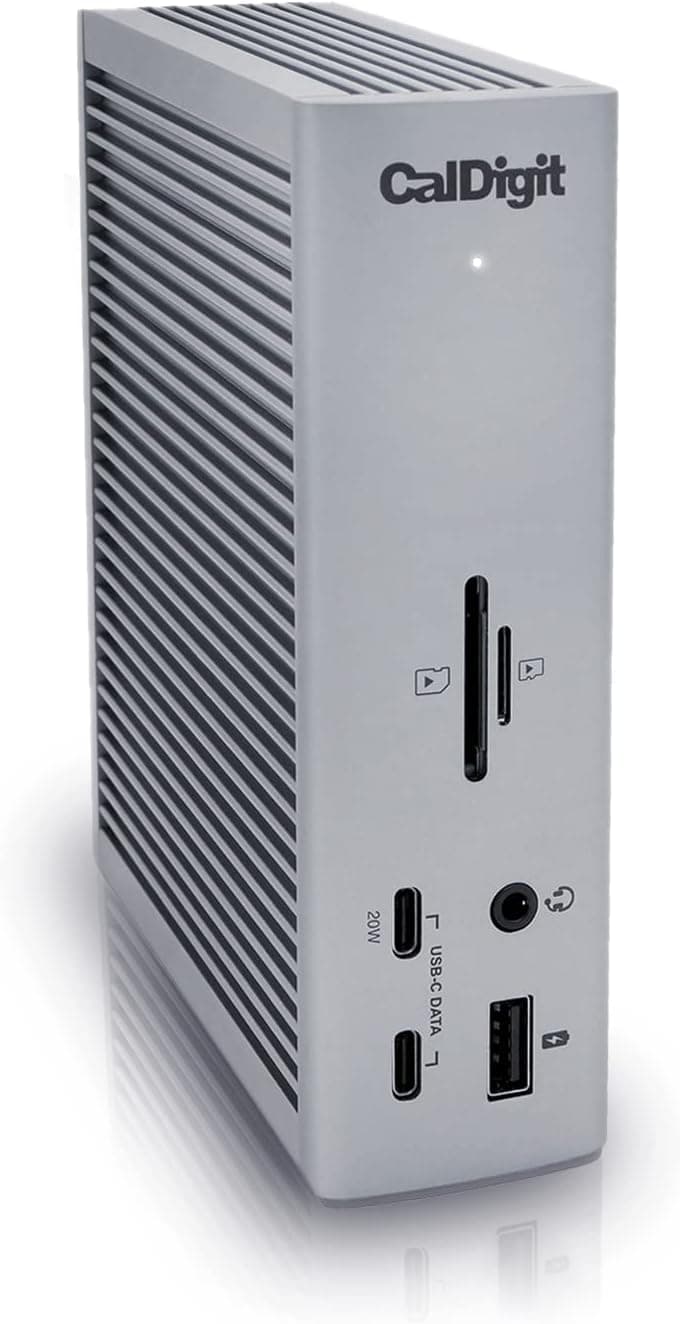
CalDigit TS4
Maximum ports, stable dual-4K, and the dock MacBook Pro users keep for years.
Best value Thunderbolt
Anker 778 Thunderbolt Dock
Strong dual-monitor support at a lower price than CalDigit.
Best budget
Plugable USB-C triple display dock
Solid entry dock for single- or dual-monitor setups without Thunderbolt pricing.
Default picks (skip if constraints disagree)
These products illustrate the criteria above — they are not a mandatory shopping list. Skip any pick that fails your desk depth, budget, noise limits, or return logistics.
Best overallThe current benchmark Thunderbolt dock — eighteen ports, reliable dual-4K output, and enough power delivery to run a MacBook Pro as a desktop replacement with one cable.
Best for: MacBook Pro and high-end Windows laptop users who connect monitors, ethernet, and peripherals daily.
- +Exceptional port selection including 2.5Gb ethernet on TS4
- +Stable monitor output compared to early USB-C hubs
- +Built for daily plug-unplug cycles
- −Premium price — overkill for single-monitor setups
- −Requires Thunderbolt port on laptop — not all USB-C ports qualify
 Best value
A strong Thunderbolt 4 alternative that delivers dual 4K monitor support, 90W charging, and a sensible port layout at a meaningfully lower price than the TS4.
Best for: Windows and Mac users who need dual displays without paying flagship dock prices.
- +Dual 4K at 60Hz on supported laptops
- +Includes SD and microSD readers
- +Smaller footprint than some enterprise docks
- −Fewer total ports than the CalDigit TS4
- −Thunderbolt required — verify laptop compatibility
Side-by-side comparison
| Feature | CalDigit TS4 | Anker 778 | Plugable USB-C |
|---|---|---|---|
| Typical price | $350 – $400 | $250 – $300 | $150 – $200 |
| Connection | Thunderbolt 4 | Thunderbolt 4 | USB-C DisplayPort Alt Mode |
| Dual 4K monitors | Yes — stable | Yes | Yes — depends on laptop |
| Power delivery | Up to 98W | Up to 90W | Up to 100W on some models |
| Ethernet + SD card | Yes — both | Yes — both | Varies by model |
| Best if you… | Want the most ports long-term | Need TB4 dual 4K on a budget | Have USB-C video and want to save |
The verdict
Confirm Thunderbolt on your laptop, then choose the CalDigit TS4 if you want the last dock you will buy for years, or the Anker 778 if you want dual 4K without flagship pricing. If Thunderbolt is not an option, the Plugable USB-C triple display dock is the practical multi-monitor path — just install DisplayLink and test sleep/wake once.
Advertisement
Ad placement activates after cookie consent.
FAQ
Thunderbolt dock vs USB-C dock — what is the difference?+
Thunderbolt docks use higher bandwidth and tighter certification, which generally means more reliable multi-monitor output and higher power delivery. USB-C DisplayPort or DisplayLink docks can work well but depend more on laptop support and drivers.
Can I use one dock for Mac and Windows laptops?+
Many Thunderbolt docks work on both with the right cables and drivers. DisplayLink docks need DisplayLink software on each OS. Test sleep/wake on both machines if you switch platforms.
How much power delivery do I need?+
For most ultrabooks and 14-inch laptops, 65W is enough. 15- and 16-inch prosumer laptops often want 90W to 100W to charge under load. Check your laptop's recommended wattage.
Will a dock fix monitor flickering?+
Sometimes — if flickering comes from a cheap hub sharing bandwidth. It will not fix bad cables, incompatible refresh rates, or laptop GPU limits. Swap cables and verify refresh settings before blaming the dock.
Related guides
Keep reading
Published 2026-07-05 · Updated 2026-07-15