Best Second Monitor Setup for Laptop (2026)
How to set up a second monitor with your laptop — dock vs hub, screen size, and ergonomic dual-screen placement for productive WFH.
Read the criteria and trade-offs first. Product picks come after so you can skip anything that fails your desk, room, or return window. How we research.
Affiliate links may appear in this guide. Prices are approximate.
Bottom line for laptop dual screens
Laptop plus one 27-inch external monitor is the most common productive WFH setup. Use USB-C monitor or hub for one-cable connection. Put the monitor on an arm, laptop on a stand — align top edges near eye level.
Check laptop display limits before buying two externals — Apple Silicon base models often allow only one external screen.
Second monitor beats wider laptop — more pixels and ergonomics for less than a laptop upgrade.
Laptop placement in dual setups
Do not leave laptop flat below monitor — neck strain follows. Use stand to raise laptop screen as secondary display offset left or right of main monitor.
Pick one primary screen — usually external 27-inch — for focus work. Laptop screen for Slack, email, or music.
Match scaling so window dragging between screens does not resize jarringly.
Connection paths
USB-C to USB-C monitor: cleanest — video, power, hub in one. HDMI via hub or dock: universal — works with most monitors and laptops. DisplayLink docks: workaround for one-display-limit Macs needing two externals.
Thunderbolt docks matter when adding ethernet, second 4K, and multiple USB devices daily.
What mattered when comparing second monitors
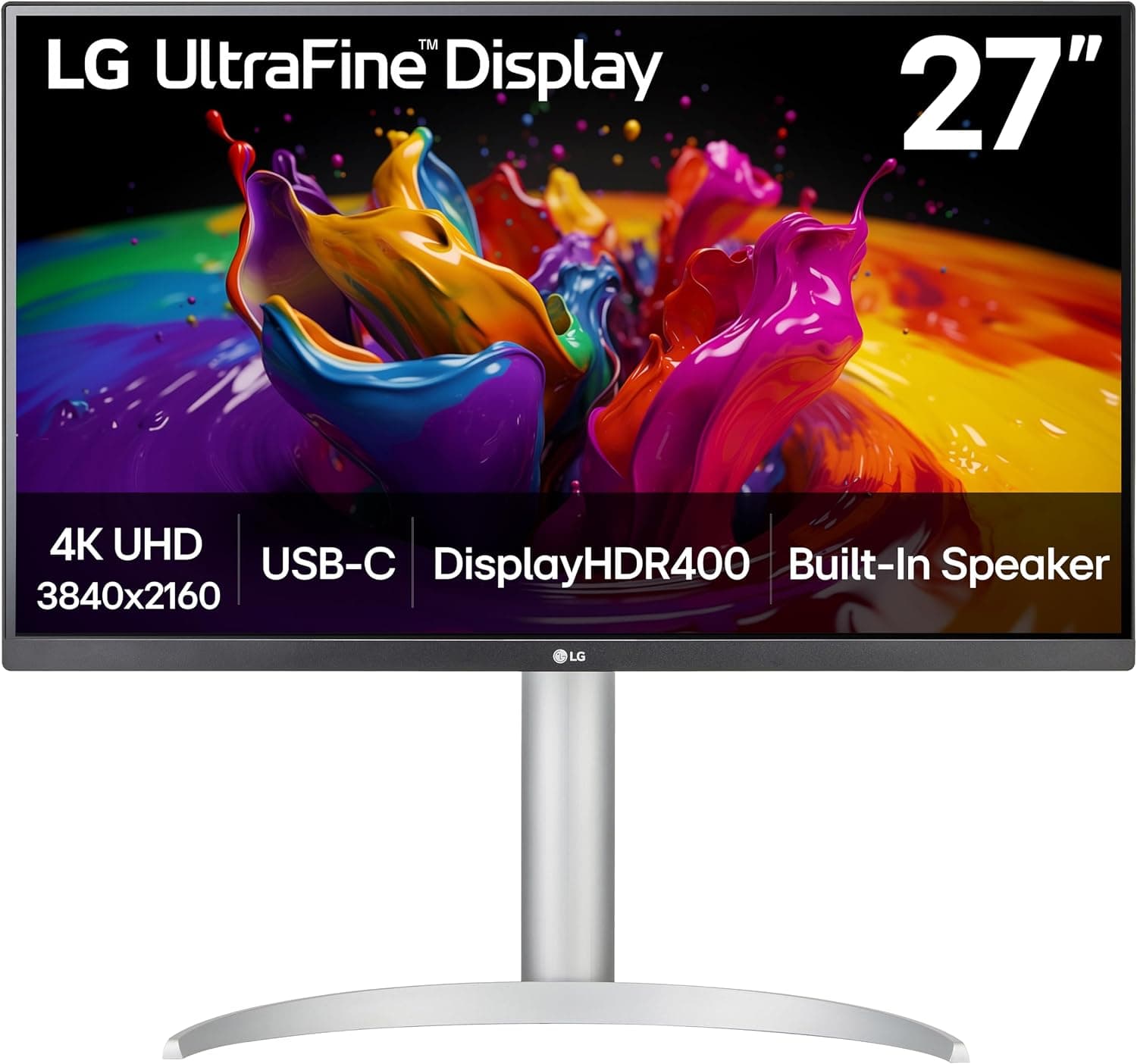
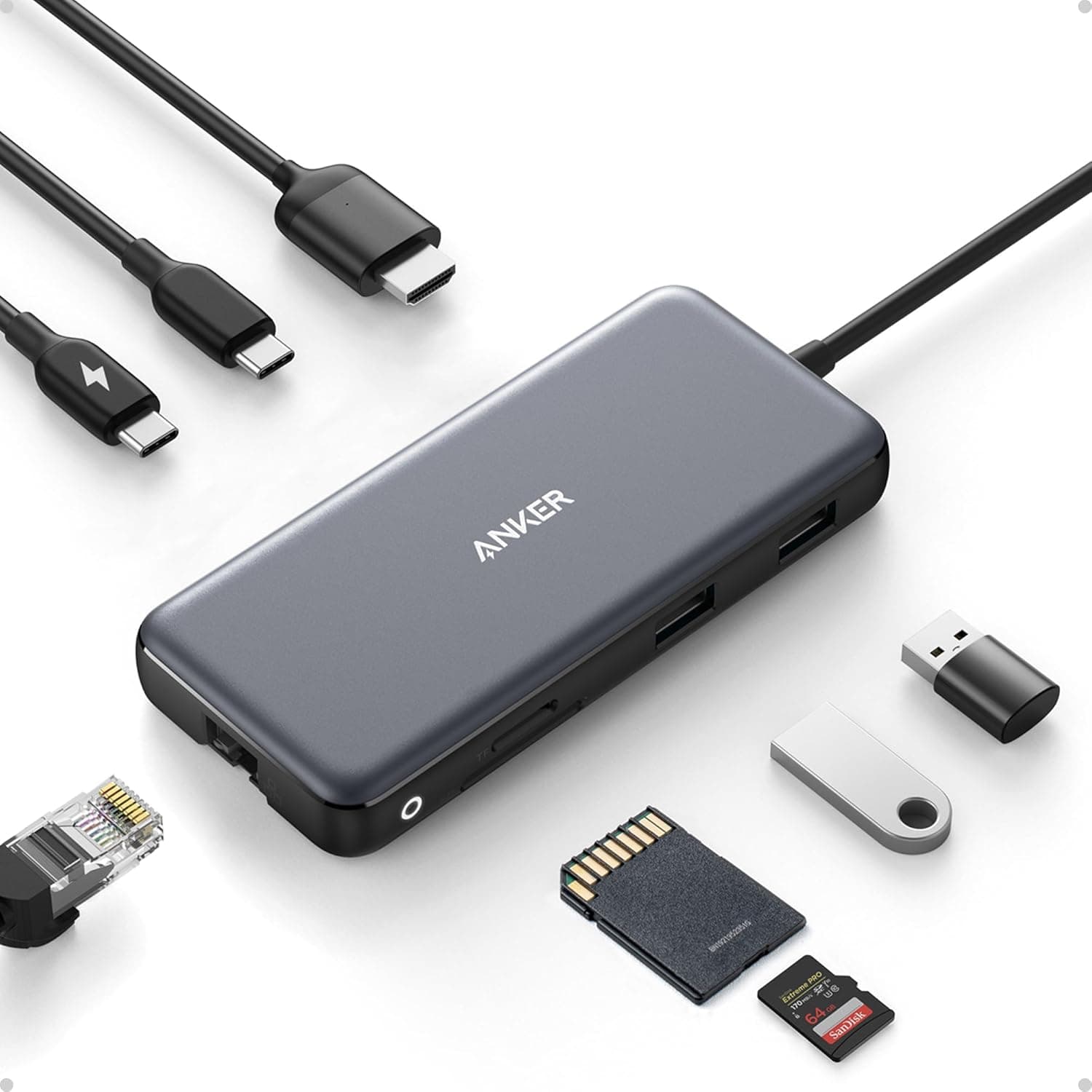
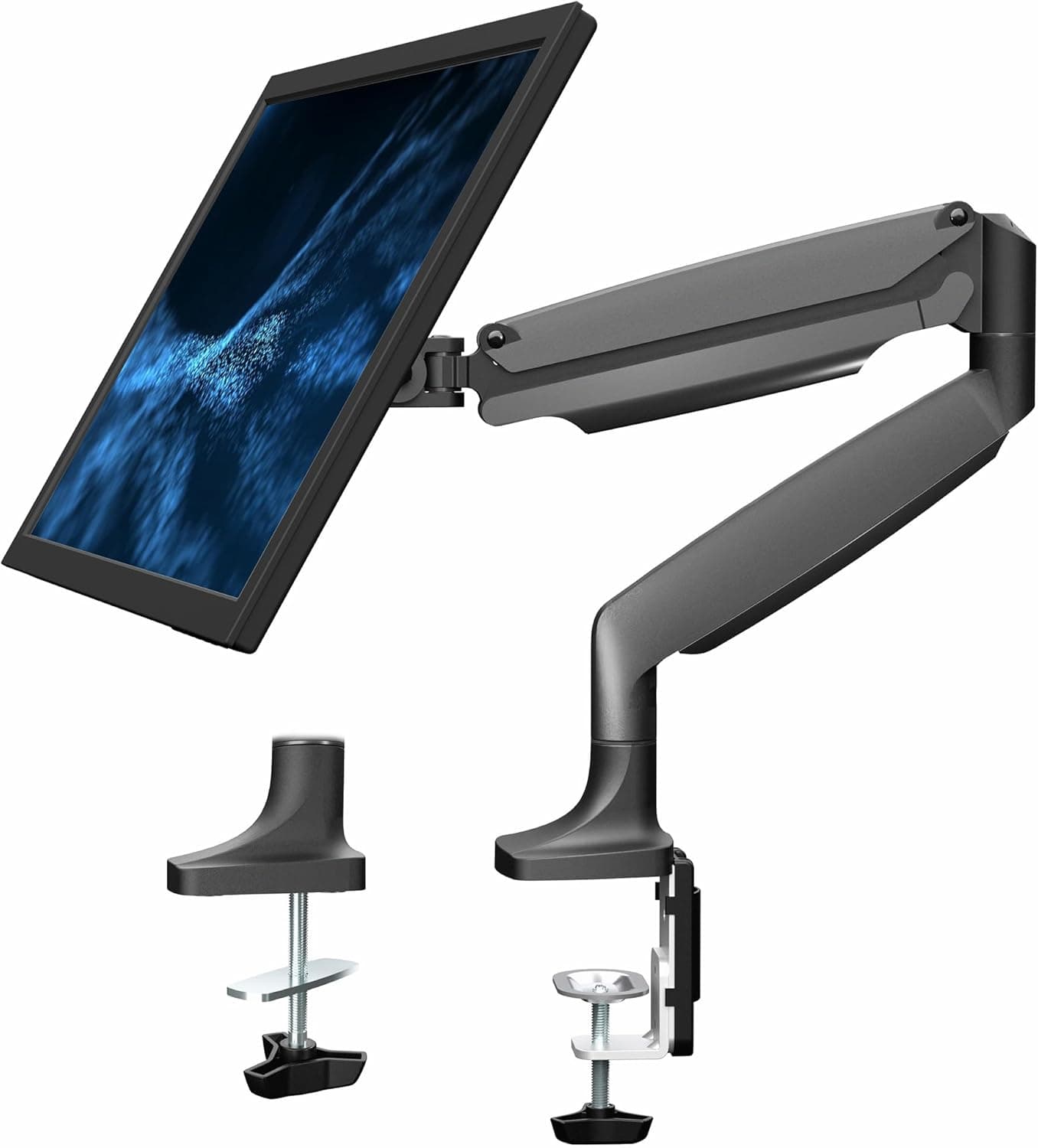
Simplicity for laptop-first users guided monitor and hub choices — LG UP850 line is a frequent MacBook pairing. Anker hub for HDMI monitors already owned. VIVO arm solves depth on small desks.
We skipped ultrawide as default — 27-inch 16:9 pairs more naturally with laptop aspect ratios.
Second monitor mistakes with laptops
Do not buy two monitors before checking M1/M2 display limits.
Avoid tiny 22-inch second screens — text too small next to laptop retina.
Do not skip laptop stand when adding external monitor.
Cheap HDMI cables fine at 1080p — use quality USB-C cables for 4K60.
Laptop closed vs laptop as second screen
Closing the lid (clamshell) with an external display and proper cooling clearance is cleaner when you have a full keyboard and mouse. Using the laptop screen as a third panel works for reference charts but adds neck twisting — elevate the laptop if you go that route.
Match scaling. Mixing a 1080p external with a sharp Retina laptop can make window dragging feel uneven. Prefer similar pixel density or accept zoom differences consciously.
Clamshell needs wake-on-external-keyboard behavior enabled in OS settings. Nothing kills flow like a closed lid that refuses to light the external panel until you open it.
Ports, docks, and bandwidth
USB-C/Thunderbolt laptops often drive one nice monitor directly. Dual externals may need a dock that matches DisplayPort alt-mode or Thunderbolt realities — cheap HDMI stubs fail silently at higher refresh.
Confirm charger wattage when the dock claims to power the laptop. Undervolting leads to battery drain during video calls.
DisplayLink docks add compatibility but consume CPU for motion. Fine for static docs; painful for 4K video editing marathons.
Ergonomic layout
Primary monitor centered with the keyboard; laptop off to the side on a stand, or closed. Top of the main screen near eye level. Keep the gap between displays small so your mouse does not vanish into a bezel canyon.
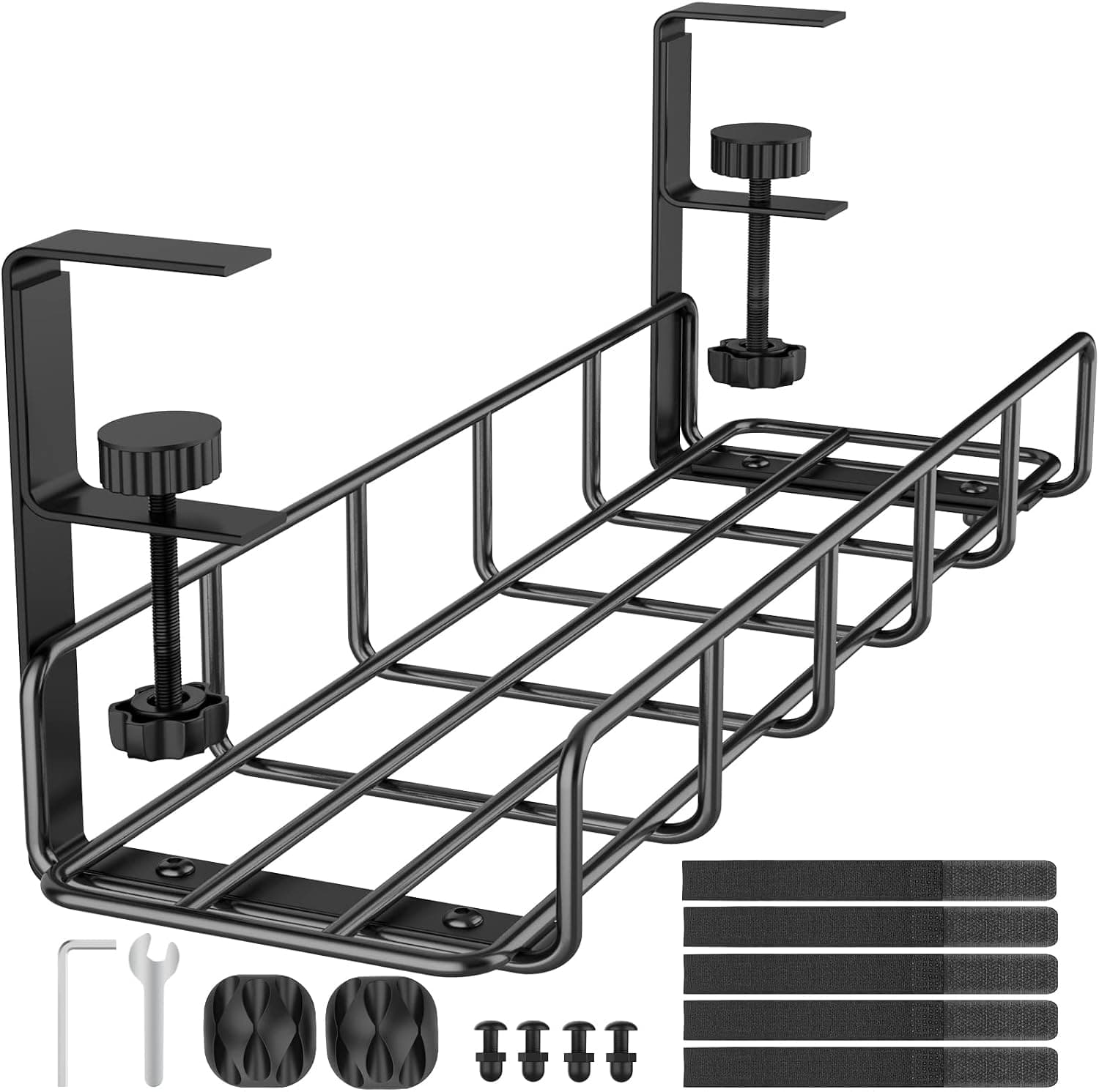
Cable colors and lengths matter more with two screens — use the tray and label inputs so unplugging for travel does not become a weekly puzzle.
Put reference material on the secondary screen, active work on the primary. Inverting that pattern invites constant head turning during typing.
Mac vs Windows quirks
Apple Silicon Macs drive one external display on base chips in some configurations; check your exact chip before buying two panels. Docking stations with DisplayLink are a workaround with tradeoffs.
Windows mixed-DPI setups remember per-monitor zoom but some legacy apps ignore it. Test your core tools on day one.
Travel and dock-unplug habits
One-click dock disconnect is a lifestyle upgrade. If you yank five cables daily, you will eventually damage a USB-C port.
Sleep vs hibernate changes how monitors wake. Note which combo avoids the “all black until lid open” trap before your first early meeting.
Video call dual-screen realities
Screen sharing defaults to one display on many platforms. Know which monitor hosts your slides before a client call — dragging windows across mismatched scaling mid-meeting is how you share your inbox instead of the deck.
Camera placement usually favors the primary panel. If the laptop screen becomes a secondary reference angled off-axis, your face may track the external cam while your eyes drift to the laptop — subtle but noticeable on long interviews.
Dual monitors increase cable count and dock heat. During back-to-back calls, verify the laptop still charges through the hub at sustained brightness on both panels. Return windows exist for a reason: firmware that drops the external display after sleep is a daily annoyance, not a minor quirk.
Cable clutter realities with dual screens
Two HDMI or USB-C display paths plus power plus Ethernet can overflow a single under-desk tray fast. Label inputs on the dock and both panels before zip-tying — apartment moves and travel unplug days go smoother when you are not guessing which cable is DisplayPort versus charging-only USB-C.
Apartment desks against walls leave no rear access for blind cable swaps. Buy cables one foot longer than the tidy minimum so you can pull the dock forward without unplugging everything. Who should skip a second monitor: ultraportable users on single USB-C ports without dock budget, and bedrooms where width forces neck twist beyond ergonomic limits.
Return-window test: sleep overnight with both displays attached, wake into your first meeting app, and screen-share from each monitor once. macOS mixed-DPI scaling and Windows fractional zoom expose layout bugs that a Sunday spreadsheet session misses. Heat under the laptop rises with dual panels — listen for fan spin during hour-three calls.
Clamshell heat and return tests
Closed-laptop setups need ventilation clearance — blocking vents on a soft mat can throttle during long Teams screen shares. Leave an inch of airflow or use a stand that elevates the chassis.
Match Windows or macOS scaling so dragged windows do not jump size unpredictably. Confirm the hub or dock power delivery keeps the laptop charging during dual video+slides.
Return any layout that forces neck twist every hour; center the primary panel with the keyboard even if that means closing the laptop lid for the workday.
Desk width measurement before the second panel
Lay a tape measure for total usable width — not catalog spec. Monitor bases, dock bricks, and desk legs eat inches fast. A 47-inch IKEA top often gives only 42 inches of clear span once the legs inset. Two 24-inch panels side by side need more width than two 24-inch monitors because bezels and stands add girth.
Depth matters as much as width in studio apartments. A second monitor on a stand may push the primary screen to the rear edge while the keyboard hangs forward. Arms or a wall-mounted secondary panel reclaim depth when width is fixed.
Door swing and closet clearance: a wider dual setup can block a bedroom closet when the chair rolls back. Tape the footprint on the floor for three days before you mount the second panel — returns on opened monitors are painful.
Laptop-as-third-screen workflows need a side stand height that matches the external panel top edge. Mismatched tops create a vertical step that fatigues neck muscles by week two even when each screen alone is ergonomic.
Week-two dual-monitor failure modes
Sleep-and-wake drops the external display on some docks after day four, not day one. If the second panel stays black until hub replug every morning, return the dock inside the window — that ritual will not fix itself.
Mixed scaling between Retina laptop and 1080p external makes dragged windows jump size. Settle zoom levels in week one; if your core app ignores per-monitor scaling, plan which screen owns that app permanently.
Clamshell heat throttling appears in hour-three video calls when dual panels and the dock share one USB-C path. Listen for fan spin; if the laptop discharges while plugged in, the dock wattage is wrong for your chip class.
Cable clutter becomes a travel tax: if you unplug weekly, label both ends before zip-tying. Who should skip dual monitors: single-port ultraportables without dock budget, bedrooms where width forces constant neck twist, and roles that never reference side-by-side docs.
Short answers below — use them only if the criteria above already match your constraints.
Quick picks
Best monitor
27″ 1440p IPS
Sweet spot for text clarity and desk depth on most home offices.
Best connection
USB-C hub or dock
One cable from laptop to monitor plus charging.
Best arm
Single monitor arm
Frees desk depth when laptop sits beside external screen.
Our top picks
These products illustrate the criteria above — they are not a mandatory shopping list. Skip any pick that fails your desk depth, budget, noise limits, or return logistics.
Best monitorA 27-inch 4K monitor with USB-C power delivery and hub — one cable from MacBook or Windows ultrabook for display, charge, and USB ports.
Best for: Laptop-primary workers who want the simplest second screen connection.
- +Single USB-C to laptop for many setups
- +4K clarity for text-heavy work
- +Built-in USB hub reduces dongle count
- −Monitor plus arm exceeds budget if starting from zero
- −M1 base chips limit to one external display without DisplayLink
 Best hub
Connects HDMI, USB-A, SD, and pass-through charging when your monitor lacks USB-C — the budget bridge between laptop and existing HDMI monitor.
Best for: Laptops with one USB-C port and an HDMI monitor already owned.
- +HDMI 4K output for external display
- +Adds ports laptop lacks
- +Desktop block — less strain on laptop port
- −Two cables if monitor lacks USB-C — hub plus charger
- −Not dual-monitor on most ultrabooks
 Best ergonomics add
A gas spring arm that holds the external monitor while laptop sits on stand to the side — aligns both screens at healthier heights on shallow desks.
Best for: Dual-screen ergonomics when desk depth is under 24 inches.
- +Reclaims desk depth under monitor
- +Easy height match between laptop on stand and external panel
- +Affordable vs built-in monitor stands eating space
- −Laptop screen still lower unless on stand — pair with riser
- −Requires VESA monitor
Side-by-side comparison
| Feature | Hub setup | Dock setup | Direct HDMI |
|---|---|---|---|
| Typical cost | $50 – $80 hub + monitor | $200+ dock + monitor | Cable only if port exists |
| Charging laptop | Pass-through on many hubs | Yes — dedicated PD | No — separate charger |
| Dual external monitors | Limited by laptop chip | Often yes on TB docks | Rare on base laptops |
| Best if you… | Single external screen | Daily plug-in workstation | Simple occasional second screen |
The verdict
Connect a 27-inch USB-C monitor like LG UP850 for one-cable laptop workflow, or use Anker 555 hub with HDMI monitor you own. Add VIVO arm and laptop stand for ergonomics — second monitor setup fails when laptop stays flat on desk.
Advertisement
Ad placement activates after cookie consent.
FAQ
Laptop closed or open with second monitor?+
Open with stand is better ergonomics — second screen plus raised laptop. Closed clamshell works with dock if you prefer single external only — requires external keyboard and mouse.
1080p or 1440p second monitor?+
1440p at 27 inches is sharper for text. 1080p saves money — acceptable at 24 inches. Match budget and desk depth.
MacBook Air one monitor limit?+
Base M1/M2 Air supports one external. Laptop screen plus one external equals two total displays. DisplayLink docks add second external with software tradeoffs.
Same brand monitor as laptop?+
Unnecessary — color match nice for photos, irrelevant for spreadsheets. Buy monitor on specs and price.
Related guides
Keep reading
Published 2026-07-05 · Updated 2026-07-26