Best USB-C Hub for MacBook Desk Setup (2026)
The best USB-C hubs for MacBook desk setups — reliable ports for monitors, drives, and peripherals without paying for Thunderbolt you do not need.
We keep the shortlist small on purpose. One strong fit beats three mediocre Amazon cards. How we research.
This guide may include affiliate links. Prices are approximate.
Bottom line for MacBook desk hubs
MacBook desk users usually need HDMI, USB-A, SD, and charging in one cable. The Anker 555 hub covers single-monitor daily use. Satechi matches Apple aesthetics on the desk. CalDigit Element Hub is the step up when Thunderbolt bandwidth and stability matter.
If you plug in once and run dual 4K monitors plus ethernet, skip hubs — read our docking station guide instead.
Hubs save money; docks save time and port wear on heavy setups.
Hub vs dock for MacBook desks
Hubs extend ports through one USB-C connection — often fine for one monitor, keyboard, mouse, and occasional drive.
Docks add dedicated display chips, ethernet, and higher power delivery for workstation replacements.
M1 and M2 MacBook Air users often max out at one external display without DisplayLink — know your chip limits before buying dual-HDMI hubs that cannot deliver.
Ports that actually matter
HDMI or DisplayPort for external monitor — verify 4K60 if you run 27″ screens.
USB-A for legacy drives and receivers — at least two ports if mouse and keyboard are not both wireless.
SD if you import photos or video — microSD slot saves a second reader.
Power delivery pass-through so one cable charges the Mac — check wattage against your model (Air 30W+, Pro 67W+ under load).
What mattered when comparing USB-C hubs
We prioritized hubs with proven M-series Mac compatibility and desktop form factors — side dongles strain ports when bumped.
Anker and Satechi dominate Mac desk setups for good reason: firmware updates and return policies. CalDigit Element fills the gap before TS4 dock pricing.
We skipped no-name hubs with anonymous chips — sleep/wake bugs cost more than the price difference.
USB-C hub mistakes at the desk
Do not expect dual 4K from basic USB-C hubs on base M1/M2 Air without DisplayLink.
Avoid leaving heavy hubs dangling from the MacBook side port — use desktop hubs or docks.
Do not mix underpowered chargers — pass-through hub needs adequate wattage brick.
Skip hubs without specified HDMI version if you run high-refresh monitors.
One cable vs desktop dock
Compact hubs suit laptop-first workers who unplug daily. Full docks with dedicated power bricks fit desks where the MacBook stays closed most of the day.
Pass-through charging wattage must match your MacBook — 30W hubs on a 14-inch Pro drain battery under load even if the icon shows charging.
Thunderbolt docks cost more but drive dual 4K displays reliably; USB-C DisplayPort-alt-mode hubs may cap at one display or 60 Hz on the second.
Port mix for real WFH kits
Prioritize: enough USB-A for legacy dongles, HDMI or DP for the external panel, Ethernet if Wi-Fi in your room is noisy, SD if you import photos. Skip redundant VGA unless you present in old conference rooms weekly.
Headphone jack placement on the hub vs the MacBook matters if you take calls wired — long analog runs can pick up hum near power bricks.
Heat, firmware, and sleep bugs
Cheap hubs run warm during drive cloning or display + charge simultaneously. Metal shells help; plastic shells near sunlight can soften.
Some hubs fail to wake displays after sleep until unplug-replug. Test within return window with your exact monitor and cable chain.
Skip these hub specs
‘Up to 10 Gbps’ on every port simultaneously is physics fiction on bus-powered sticks. Read fine print for shared bandwidth.
Hubs with permanently attached cables fray at the strain relief — prefer replaceable USB-C upstream if you travel.
Return-window sleep and display tests
On day one, cycle laptop sleep ten times with the external monitor attached. Some hubs drop signal until unplug-replug — unacceptable for a desk you use at 8:55 a.m. meetings. Document the behavior and return inside the window instead of fighting firmware for a year.
Charge while driving display plus SSD on the same hub. If battery drains during video calls, the pass-through wattage is too low for your MacBook class. A hub that shows a charging icon but still loses percentage is a return, not a workaround.
Heat during long clones is normal; sustained plastic deformation is not. If the shell softens near a sunny window, relocate the hub or exchange it. Apartment desks often sit in direct afternoon sun — plan ventilation before you cable-tie everything tight.
Apartment power strip and heat constraints
MacBook hubs often share one power strip with monitor, lamp, and phone charger under a small desk — add wattage before you hide the brick in a sealed tray. Undervoltage during winter heater cycles on the same circuit causes display flicker that looks like a bad hub when the strip is the culprit.
Bus-powered sticks run hot when cloning drives and driving 4K simultaneously. Metal shells help; plastic sticks in afternoon sun can soften adhesive on cable ties. Who should skip desktop hubs: daily travelers who unplug twice a day — a compact travel hub plus one dock at home splits cost better.
Return-window noise test: listen for coil whine six inches from the mic at idle and under load. Ethernet dropouts during VPN calls are return-worthy, not IT tickets. Size cable length so the hub sits where the laptop lands every morning — repeated sharp bends over desk edges fray upstream USB-C within months.
Desk landing zone for one-cable mornings
Place the hub where the MacBook lands every day — left or right based on your dominant hand for cable insert. Moving the dock monthly guarantees bent upstream USB-C and intermittent display wake.
Mark the desk with a subtle tape outline for laptop alignment so ports mate first try at 8:55 a.m. Misalignment by half an inch causes scrape marks on aluminum shells over a year.
Keep the upstream cable length minimal but not strained — six inches of slack in a sleeve beats a taut three-foot run that pulls the hub off the desk when you adjust the chair.
Clamshell workers need the hub reachable without opening the lid daily — power button access and status LEDs matter when the laptop lives closed. Test closed-lid wake before the return window closes.
Week-two hub failures on apartment power
Shared circuits with space heaters and window AC units cause brownouts that look like hub failure — flicker during winter mornings may be the strip, not DisplayPort. Stagger high-draw devices before you RMA a dock.
Sleep bugs appear after day four: external display black until replug. Cycle lid close ten times inside the return window; document behavior for return, not forum hacks.
Heat under afternoon sun on a desk by the window softens plastic hub shells and cable tie adhesive. Metal docks need ventilation gaps — do not bury the brick in a sealed tray.
Who should skip desktop hubs: daily travelers unplugging twice, MacBook users with one display and no legacy USB-A, and anyone whose real problem is Wi-Fi not ports. A compact travel hub plus home dock splits cost when mobility is real.
Short answers below — use them only if the criteria above already match your constraints.
Quick picks
Best overall
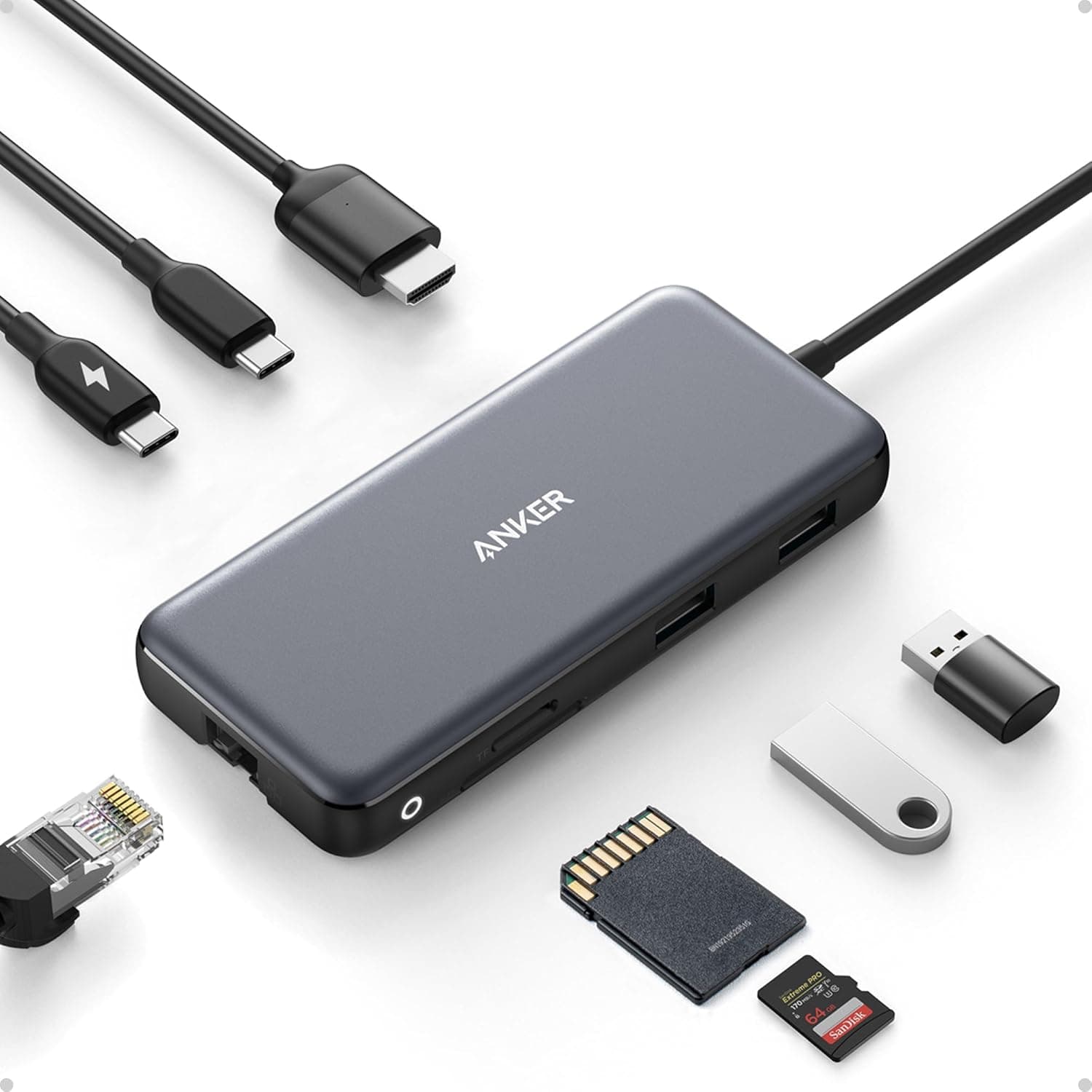
Anker 555 USB-C Hub
HDMI, USB-A, SD, and power delivery in one compact desktop block.
Best design
Satechi Multiport Adapter
Matches Space Gray MacBooks and sits flush on the desk.
Best compact
CalDigit Element Hub
Thunderbolt 4 when you need stability without full TS4 pricing.
Default picks (skip if constraints disagree)
These products illustrate the criteria above — they are not a mandatory shopping list. Skip any pick that fails your desk depth, budget, noise limits, or return logistics.
Best overallAn desktop-oriented USB-C hub with HDMI, SD card, USB-A, and pass-through charging — the default when a MacBook Air or Pro needs ports every day but not a full Thunderbolt dock.
Best for: MacBook users with one external monitor, occasional SD imports, and legacy USB-A devices.
- +Reliable daily driver for M-series MacBooks
- +HDMI 4K output for most single-monitor desks
- +SD and microSD slots for camera workflows
- −Not a full dock — dual 4K or ethernet may need upgrade
- −Can run warm under heavy USB-A load
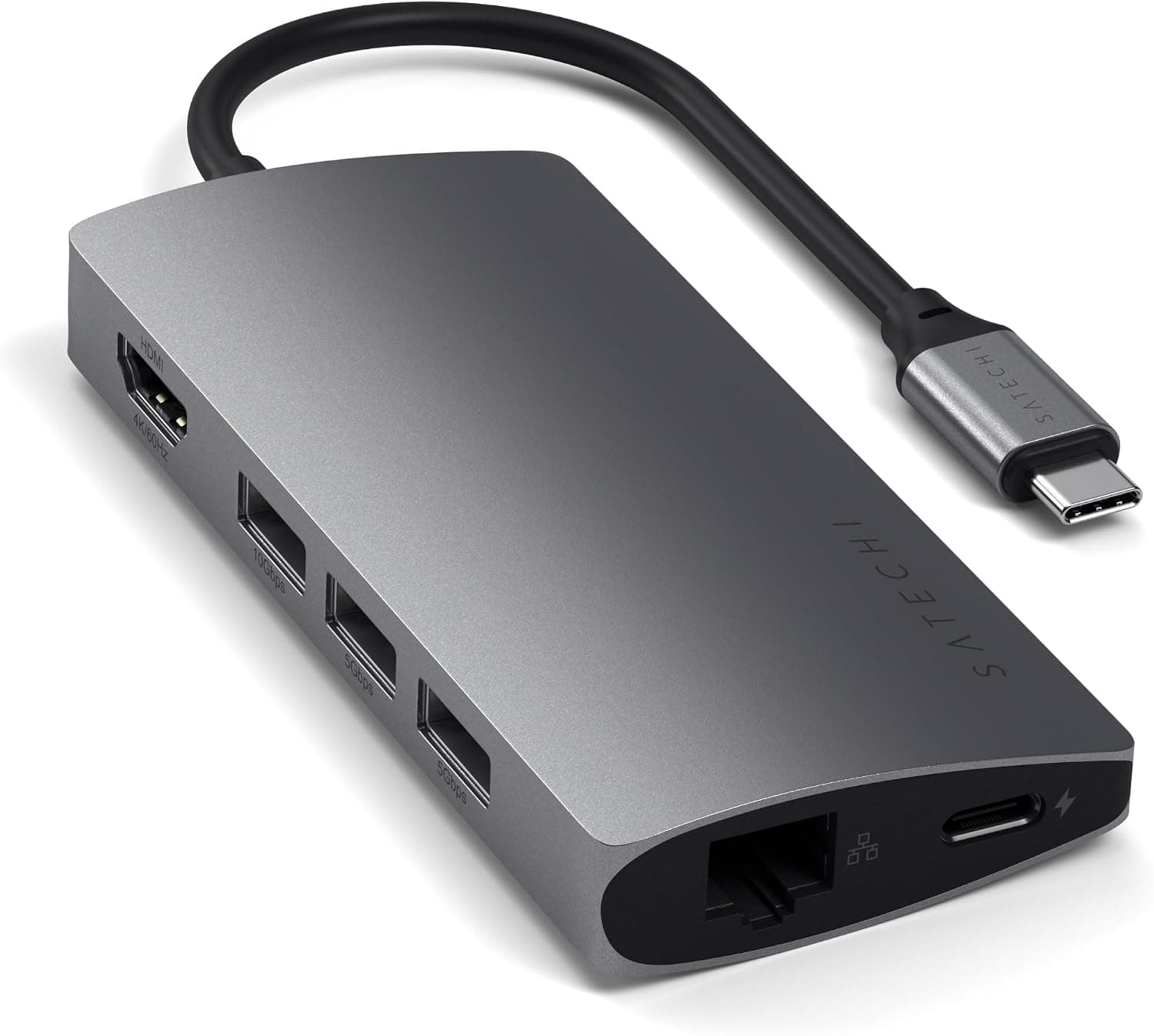 Best for Mac aesthetic
A aluminum hub designed to match Apple laptops — sits on the desk as a permanent port block rather than a dongle dangling from the side.
Best for: Design-conscious Mac users who want desk aesthetics and port access in one piece.
- +Space Gray / Silver matches MacBook finish
- +Desktop form factor reduces cable strain on laptop port
- +HDMI and USB-A plus pass-through charging
- −Fewer ports than larger Anker desktop hubs
- −Premium price per port vs generic hubs
Side-by-side comparison
| Feature | USB-C hub | Satechi adapter | TB4 Element Hub |
|---|---|---|---|
| Typical price | $50 – $80 | $70 – $90 | $180 – $200 |
| Single cable to Mac | Yes | Yes | Yes — Thunderbolt 4 |
| 4K monitor output | Yes — HDMI | Yes — HDMI | Yes — more stable bandwidth |
| Power delivery to Mac | 60W – 100W varies | Pass-through charging | Up to 60W host + ports |
| Best if you… | Need ports daily, one monitor | Want aesthetic match | MacBook Pro + peripherals heavy load |
The verdict
Most MacBook desk setups should start with the Anker 555 — HDMI, SD, USB-A, and charging in one block. Choose Satechi if desk aesthetics match your Mac. Upgrade to CalDigit Element Hub when dongles wobble on sleep/wake or you need Thunderbolt bandwidth for pro storage — full TS4 dock when dual 4K and ethernet are daily requirements.
Advertisement
Ad placement activates after cookie consent.
FAQ
USB-C hub or Thunderbolt dock?+
Hub for one monitor and light peripherals. Dock for dual 4K, ethernet daily, and one-cable workstation mode. Element Hub sits in the middle for TB4 stability without full dock port count.
Will any hub charge my MacBook Pro?+
Only hubs with USB-C power delivery pass-through — and the wattage must meet your model. 14″ and 16″ Pros often want 67W+ under load.
Why does my hub disconnect on sleep?+
Firmware and cable quality issues — update macOS, try Apple-certified cables, and prefer name-brand hubs over anonymous Amazon listings.
Hub with built-in cable or separate?+
Built-in cable reduces one failure point but limits replacement. Separate TB4 cable is easier to swap if frayed — docks usually use removable cables.
Does my M-series Mac need Thunderbolt specifically?+
For one display and light peripherals, a solid USB-C hub often suffices. For dual high-res monitors, fast NVMe enclosures, or PCIe bandwidth, Thunderbolt-class docks are worth the premium. Match the dock to your actual port count, not a theoretical setup.
Why does my hub work on day one but drop the monitor on day five?+
Sleep-and-wake firmware bugs often appear after repeated lid-close cycles, not at unboxing. Test ten wake cycles inside the return window with your exact monitor and cable. If the external panel stays black until replug every morning, return the hub — that ritual will not improve with patience.
Related guides
Keep reading


Published 2026-07-05 · Updated 2026-07-26